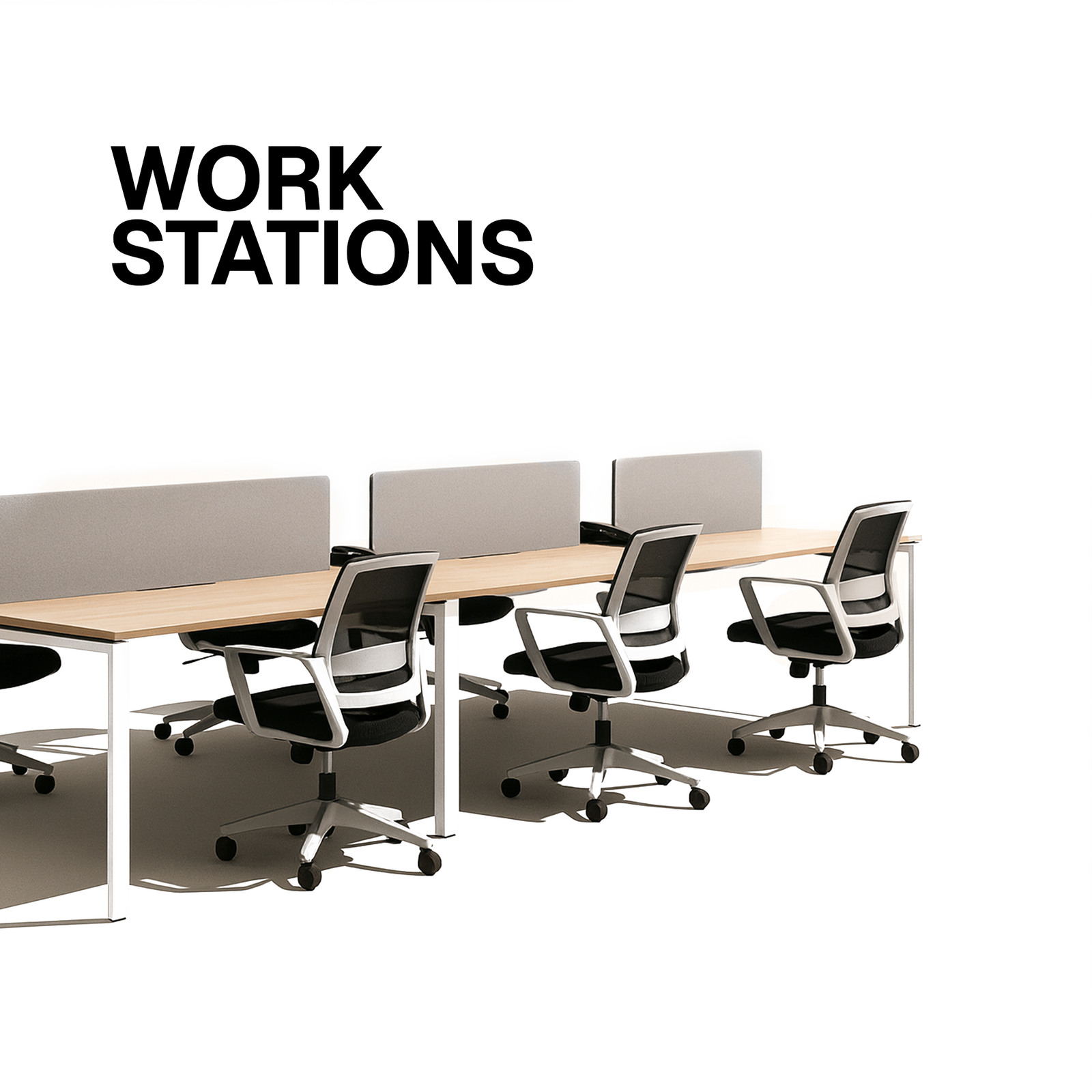
Tips for Integrating Tech into Workstation Designs

In today’s hyper‑connected world, a workstation is no longer just a desk and a chair. It’s a dynamic hub where hardware, software, and ergonomics intersect to boost productivity, foster collaboration, and protect employee well‑being. Whether you’re outfitting a home office, a corporate cubicle, or a creative studio, the challenge is the same: how do you blend the latest technology into a workspace without turning it into a tangled mess of cables, distractions, and discomfort?
In this guide, we’ll walk you through twelve practical, research‑backed tips that help you design a workstation that feels both futuristic and comfortable. From choosing the right monitor setup to future‑proofing your power infrastructure, each tip is accompanied by actionable steps, real‑world examples, and a quick “why it matters” snapshot. By the end, you’ll have a clear roadmap for creating a tech‑infused workstation that empowers you (or your team) to work smarter, not harder.
1️⃣ Start with a Human‑Centric Blueprint
Why it matters
Technology is an enabler, not the end goal. If the space feels uncomfortable or forces users to adopt awkward postures, productivity will plummet, and health problems (neck strain, eye fatigue, RSI) will rise.
How to do it
Step Action Tools/Resources
Assess workflow Map out a typical day: tasks, software, hardware, collaboration moments. Miro board, paper flowchart
Identify pain points Survey users about current discomforts (e.g., glare, reach distance). Google Forms, OfficePulse
Define ergonomic zones Separate “focus” (single‑monitor work), “collaboration” (dual‑monitor or whiteboard), and “break” (standing, movement). SketchUp, floor‑plan templates
Set measurable goals E.g., reduce average mouse travel by 15 % or cut eye‑strain complaints by 30 %. OKR tools (Asana, Weekdone)
> Pro tip: Start with a “human‑first” persona (e.g., “Creative Designer – spends 6 h a day in Photoshop”) and design the tech layout around that persona’s specific needs.
2️⃣ Choose the Right Monitor(s) for the Job
Why it matters
The monitor is the visual gateway to digital work. The wrong size, resolution, or placement can cause neck strain, eye fatigue, and reduced efficiency.
How to do it
1. Size & Resolution
Productivity & multitasking: 27–32‑inch 4K (3840×2160) or ultrawide 34‑38‑inch 1440p.
Graphic design & video: 32‑inch 4K with 100 % Adobe RGB coverage.
Coding & data analysis: 27‑inch 1440p with a 100 % sRGB gamut.
2. Panel Type
IPS for color accuracy and wide viewing angles.
VA for deeper blacks (good for media consumption).
3. Ergonomic Adjustability
Height, tilt, swivel, and pivot. Look for VESA‑compatible models.
4. Mounting Solutions
Desk‑clamp arms free up surface space and allow quick repositioning.
Wall‑mounts are ideal for shared or “clean‑desk” environments.
5. Eye‑Care Features
Flicker‑free backlight, low‑blue‑light (ComfortView, TÜV Rheinland certified).
> Real‑world example: A marketing team switched from a single 24‑inch monitor to a 34‑inch ultrawide. Click‑through rates on internal dashboards rose 12 % because analysts could view more data at once without toggling windows.
3️⃣ Embrace a Cable Management Strategy Before You Plug Anything In
Why it matters
Messy cables are an eyesore, a tripping hazard, and a barrier to airflow—leading to overheating and shortened device lifespan.
How to do it
Technique Best Use Recommended Products
Cable trays (under‑desk) Bulk power & data bundles IKEA SIGNUM, Fellowes Cable Management Box
Velcro ties / reusable zip ties Small‑bundle tidying Velcro® One‑Wrap, 3M Cable Ties
Cable sleeves & raceways Concealing cables that run along walls/floor J Channel, DLine Cable Management
Desk grommets Passthrough for power strips & USB hubs IKEA RÅSKOG, Custom CNC grommets
Wireless peripherals Eliminate mouse/keyboard cords entirely Logitech MX Master 3, Keychron K8 Wireless
Implementation checklist:
1. Plan the route before you drill holes—think “power → outlet → surge protector → devices.”
2. Label each cable at both ends using heat‑shrink tags or printable labels.
3. Bundle by function (e.g., “monitor power,” “data,” “charging”).
4. Leave slack for future upgrades; don’t tighten cables to a nerve‑tight knot.
4️⃣ Power Up with Smart, Scalable Electrical Infrastructure
Why it matters
A workstation with multiple monitors, docking stations, external GPUs, and IoT devices can draw 300 W+—far beyond a single‑plug outlet. Overloading leads to outages or fire hazards.
How to do it
Surge‑protected Power Strips with at least 10 A capacity, and built‑in USB‑C PD (Power Delivery) ports (60 W‑100 W).
Dedicated Circuit (20 A) for high‑density tech zones. In large offices, coordinate with an electrician for a PDUs (Power Distribution Units) that allow remote monitoring.
UPS (Uninterruptible Power Supply) for critical workstations (e.g., developers, video editors). Look for at least 15 min runtime at full load.
Energy‑monitoring plugs (e.g., TPLink Kasa Smart Wi‑Fi Plug) to track wattage per device and identify “energy hogs.”
> Future‑proof tip: Install USB‑C Power‑Delivery (PD) outlets directly into the wall or desk. A 90 W PD outlet can power a laptop, monitor, and docking station simultaneously—cutting the number of adapters you need.
5️⃣ Adopt a Docking‑Station‑Centric Architecture
Why it matters
Constantly plugging/unplugging a laptop is a wear‑and‑tear nightmare. Docking stations serve as a single “hub” for monitors, power, data, and peripherals.
How to do it
Scenario Recommended Dock Key Specs
General office Dell WD19TB 130 W PD, dual 4K@60Hz, 2× USB‑C, 3× USB‑A
Creative work (Mac) CalDigit TS4 94 W PD, 2× 4K@60Hz, 1× 8K@30Hz, 4× USB‑C, 5× USB‑A
Gaming / high‑performance Razer Thunderbolt 4 Dock 90 W PD, 2× 4K@144Hz, 1× 8K@60Hz, Ethernet 2.5 Gbps
Budget Anker PowerExpand Elite 85 W PD, dual 4K, 2× USB‑C, 4× USB‑A
Implementation Steps
1. Place the dock on the desk or under it (if the model supports under‑desk mounting).
2. Connect all peripherals (monitor, keyboard, mouse, external storage) to the dock.
3. Cable‑manage the dock’s power and data cables using a single cable run to the wall outlet.
4. Label the dock with the user’s name and the devices it powers for easy troubleshooting.
6️⃣ Optimize Audio & Video for Remote Collaboration
Why it matters
Poor audio/video quality hampers meetings, reduces trust, and can lead to “Zoom fatigue.”
How to do it
Microphone: A directional USB condenser mic (Blue Yeti, Rode NT‑USB) or a boom‑arm desk mic with noise‑cancellation.
Speakers: Compact studio monitors (Audioengine A2+) or a sound‑bar with a built‑in mic for dual‑purpose.
Webcam: 1080p or 4K (Logitech BRIO, Razer Kiyo) with HDR and auto‑focus.
Acoustic panels (foam or fabric) on walls to reduce echo in open‑plan areas.
Headsets with active noise cancellation for noisy environments (Jabra Evolve2, Sony WH‑1000XM5).
Quick tip: Use a USB‑C hub with an integrated audio interface to keep the audio signal path short and avoid latency.
7️⃣ Prioritize Ergonomics While Adding Tech
Why it matters
Even the most advanced tech is useless if the user experiences chronic pain.
How to do it
Ergonomic Element Tech‑Friendly Solution
Chair Adjustable lumbar support + breathable mesh. Add a seat cushion with memory foam for extra comfort.
Desk Height Height‑adjustable sit‑stand desk (electric or pneumatic). Look for a quiet motor (e.g., Fully Jarvis).
Keyboard Low‑profile mechanical (Keychron K3) or split ergonomic (Kinesis Freestyle).
Mouse Vertical mouse (Logitech MX Vertical) or trackball (Kensington Expert).
Monitor Position Top of the screen at eye level, 20‑30 inches away. Use a monitor arm for easy height adjustments.
Lighting Adjustable color‑temperature desk lamp (BenQ e‑Reading) plus ambient bias lighting behind the monitor to reduce glare.
Ergonomic audit checklist:
1. Eye level: Is the top of the screen at or slightly below eye level?
2. Arm angle: Are elbows at a 90‑100° angle when typing?
3. Wrist posture: Are wrists neutral, not bent up or down?
4. Foot support: Are feet flat on the floor or on a footrest?
8️⃣ Leverage Wireless Connectivity to Declutter
Why it matters
Wi‑Fi 6E (or the upcoming Wi‑Fi 7) offers higher bandwidth, lower latency, and more reliable connections—crucial for video editing, cloud‑based CAD, or VR/AR prototyping.
How to do it
Upgrade the router to a Wi‑Fi 6E dual‑band (2.4 GHz + 5 GHz + 6 GHz) or tri‑band system (e.g., Netgear Nighthawk RAXE500).
Deploy a mesh network for large offices to ensure uniform coverage.
Use a Wi‑Fi 6E dongle for older laptops that lack native support.
Adopt a Bluetooth 5.2 mouse/keyboard combo for low‑latency peripheral connectivity.
> Security tip: Enable WPA3 encryption and segment guest traffic on a separate SSID to protect corporate data.
9️⃣ Implement Smart Desk Accessories
Why it matters
Smart accessories add automation, reduce manual steps, and create a seamless user experience.
Must‑have gadgets
Accessory Core Benefit Example
Smart power strip Auto‑shutoff for idle devices; voice control via Alexa/Google Assistant APC Smart Plug Surge Protector
Desktop Air Purifier Improves air quality, reduces allergens that can cause fatigue Molekule Air Mini
Adjustable Desk Lamp with Sensors Auto‑adjusts brightness based on ambient light; reduces eye strain Philips Hue Beyond
Wireless Charging Pad Keeps phone, earbuds, and wearables topped up without cables Anker PowerWave 10W
Digital Note‑Taking Tablet Replaces paper sticky notes; syncs with cloud for instant sharing Remarkable 2, Wacom One
Integration tip: Use IFTTT or Zapier to create “if‑this‑then‑that” workflows, such as “When my calendar shows a meeting, dim the desk lamp and turn on the webcam.”
Future‑Proof Your Workstation
Why it matters
Technology evolves faster than office furniture cycles. Building in flexibility saves money and disruption down the road.
Strategies
1. Modular furniture – Desks with interchangeable panels, removable cable trays, and plug‑in power modules.
2. VESA‑compatible mounts – For monitors, laptops (via docking), and even all‑in‑one PCs.
3. USB‑C/Thunderbolt 4 ports – Serve as universal data, video, and power connectors.
4. Standardized cable lengths – Keep spare 3 ft, 6 ft, and 12 ft cables for future devices.
5. Open‑source firmware on peripherals (e.g., QMK keyboards) for custom keymaps and updates.
> Pro tip: Label each modular component with a QR code that links to an online inventory sheet (Google Sheet, Airtable). When you replace a monitor, scan the code and update the asset record in seconds.
1️⃣1️⃣ Sustainability—Design with the Planet in Mind
Why it matters
Eco‑friendly workstations reduce waste, lower carbon footprints, and appeal to socially conscious employees.
Green practices
Practice Implementation
Energy‑efficient hardware Choose monitors with ENERGY STAR certification and laptops with low‑power CPUs (e.g., Intel Evo).
Recyclable materials Opt for desks made from reclaimed wood or recycled aluminum.
Modular upgrades Instead of buying a new workstation, upgrade RAM, SSD, or GPU.
E‑waste disposal Partner with certified e‑waste recyclers for end‑of‑life devices.
Smart lighting Use motion‑sensor LED lights that dim when the area is unoccupied.
Case study: A design studio swapped 30 W LED desk lamps for 10 W tunable lighting and installed a centralized occupancy sensor. Annual energy consumption dropped by 12 %—equivalent to powering 15 laptops for a year.
1️⃣2️⃣ Test, Iterate, and Gather Feedback
Why it matters
A workstation that looks perfect on paper may reveal hidden issues when lived in—like a mouse that constantly bumps the edge of a monitor arm or a cable that interferes with a keyboard tray.
Process
1. Pilot Program – Deploy the new design with a small group (3‑5 users) for 2–4 weeks.
2. Feedback Loop – Use short surveys (NPS style) and informal check‑ins.
3. Metrics – Track objective data: average task completion time, number of support tickets, eye‑strain complaints.
4. Iterate – Make adjustments (e.g., reposition the webcam, upgrade to a quieter desk motor).
> Data point: Companies that run a workstation pilot see a 17 % faster adoption rate and a 22 % reduction in post‑rollout support tickets.
TL;DR – The 12‑Step Checklist
✅ Action
1 Map workflow & define ergonomic zones.
2 Choose monitor size, panel type, and mounting.
3 Implement a comprehensive cable‑management plan.
4 Install surge‑protected, PD‑ready power strips and UPS.
5 Use a docking‑station‑centric hub for all peripherals.
6 Upgrade audio/video gear for crystal‑clear meetings.
7 Verify ergonomic posture with adjustable chair/desk.
8 Deploy Wi‑Fi 6E/7 and Bluetooth 5.2 for wireless freedom.
9 Add smart desk accessories (auto‑off strips, air purifiers).
10 Build modular, VESA‑compatible, USB‑C/Thunderbolt ready stations.
11 Choose sustainable hardware and energy‑saving practices.
12 Pilot, collect feedback, iterate, and document results.
Closing Thoughts – From “Tech‑Heavy” to “Tech‑Smart”
Integrating technology into workstation design isn’t about stuffing as many gadgets as possible onto a desk. It’s a holistic, people‑first strategy that balances performance, health, aesthetics, and future growth. By following the twelve tips above, you’ll craft spaces where employees can focus deeper, collaborate smoother, and stay comfortable—all while keeping the infrastructure resilient and ready for the next wave of innovation.
Ready to transform your workstations? Start with a single pilot desk, apply the checklist, and watch the ripple effect spread across your organization. The future of work is already here; it’s just waiting for a well‑designed home.
Quick Resource List
Category Recommended Products/Links
Monitors Dell UltraSharp U2720Q, LG 34WN80C, ASUS ProArt PA32UCX
Docking Stations CalDigit TS4, Dell WD19TB, Anker PowerExpand Elite
Cable Management IKEA SIGNUM, J Channel Raceways, Velcro One‑Wrap
Power & UPS APC Smart‑UPS, CyberPower CP1500PFCLCD, TP‑Link Kasa Smart Plug
Audio/Video Logitech BRIO 4K Webcam, Blue Yeti Mic, Jabra Evolve2 85
Ergonomics Fully Jarvis Sit‑Stand Desk, Herman Miller Aeron Chair
Smart Accessories Philips Hue Beyond Lamp, Molekule Air Mini, Anker PowerWave
Wi‑Fi Netgear Nighthawk RAXE500, Ubiquiti UniFi 6 Long‑Range
Sustainability IKEA Reclaimed Wood Desks, ENERGY STAR Monitors
Feel free to adapt any of these suggestions to your budget, industry, or personal preferences. The most important thing is to start small, measure impact, and scale intelligently. Happy designing!