Common Mistakes in Office Ergonomics and How to Fix Them

Introduction: Why Ergonomics Isn’t Just a Fancy Buzzword
You’ve probably heard the phrase “ergonomics” tossed around in HR newsletters, productivity webinars, and the occasional meme about a person hunched over a laptop with a “I’m not a robot” sticker. But beyond the jargon, ergonomics is the science of designing workspaces that fit the human body—so you can stay comfortable, avoid injury, and actually get more done.
In a world where many of us spend 7‑10 hours a day glued to a screen, even tiny posture slips can snowball into chronic neck pain, carpal tunnel, or lower‑back misery. The good news? Most of these problems stem from simple, repeatable mistakes that are easy to spot and fix.
In this post we’ll dive deep into the 12 most common office‑ergonomics blunders, explain why they cause trouble, and give you actionable, step‑by‑step fixes you can implement today—whether you’re at a corporate cubicle, a home‑office nook, or a co‑working space.
Grab a coffee, stretch those shoulders, and let’s get comfortable (literally).
1. The “One‑Size‑Fits‑All” Desk Height
The Mistake
You sit at a desk that’s either too high (your elbows shoot up, shoulders lift) or too low (you’re forced to hunch). Many offices purchase standard‑height desks (≈ 29–30 in or 73–76 cm) and assume they work for everyone.
Why It Hurts
Shoulder elevation tightens the trapezius muscles → tension headaches.
Forward head posture stresses the cervical spine → neck pain.
Wrist extension when typing on a low desk increases carpal tunnel risk.
The Fix
1. Measure Your Elbow Angle – Sit upright, let your arms rest naturally at your sides, and bend elbows to 90°. The top of the desk should align with the forearm’s underside (i.e., your elbows should be at a right angle when typing).
2. Adjustable Desk – If you can, invest in a sit‑stand desk or a desk with a pneumatic/hand‑crank height adjuster. Even a simple riser (5–8 cm) can make a world of difference.
3. Keyboard Tray – For fixed‑height desks, add an adjustable keyboard tray that slides under the tabletop. This lets you keep your hands at the perfect height while keeping the monitor at eye level.
2. The “Neck‑to‑Screen” Gap (or Lack Thereof)
The Mistake
Your monitor is either too low (you crane your neck) or too high (you tilt your head back). In a rush, people often prop laptops on their laps or stack books under the screen, creating awkward angles.
Why It Hurts
Forward head posture puts extra load on the cervical spine (up to 10 lb for every inch the head moves forward).
Neck extensor strain can lead to “tech‑neck” and chronic soreness.
The Fix
1. Eye‑Level Rule – The top third of the screen should be at or just slightly below eye level, so you look slightly down (about a 15‑20° angle).
2. Distance Matters – Position the monitor about an arm’s length away (20–30 in or 50–75 cm). The rule of thumb: when you can just read the text without leaning forward, you’re set.
3. Use Stands or Docking – A laptop riser (5–10 cm) paired with an external keyboard and mouse restores a neutral neck posture.
4. Dual‑Monitor Setup – If you need two screens, place the primary monitor directly in front of you and the secondary slightly off‑center, both at the same height.
3. Ignoring the “Neutral Wrist” Position
The Mistake
Typing or using a mouse with the wrist bent up (extension) or down (flexion). Many people rest their wrists on the edge of the desk or a wrist pad, creating a static angle for hours.
Why It Hurts
Increased pressure on the median nerve → carpal tunnel syndrome.
Tendon irritation in the forearm → lateral epicondylitis (tennis elbow).
The Fix
1. Keyboard Angle – Keep the keyboard flat (or slightly negative, meaning the front is lower) so your wrists stay in a neutral, straight line with your forearms.
2. Mouse Position – Place the mouse adjacent to the keyboard and at the same height. Use a mouse pad with a wrist rest only if it keeps the wrist neutral—not elevated.
3. Ergonomic Peripherals – Consider an ergonomic split keyboard, a vertical mouse, or a trackball if you experience persistent wrist fatigue.
4. The “Slouch‑on‑The‑Chair” Habit
The Mistake
Sitting all the way back, slumping, or sliding forward off the seat. The chair becomes a “recliner” rather than a supportive workstation.
Why It Hurts
Lumbar support loss → disc compression and low‑back pain.
Pelvic tilt (forward or backward) can cause hip flexor tightness and hamstring strain.
The Fix
1. Adjust the Chair –
Seat height: Your feet should be flat on the floor, knees at ~90°.
Seat depth: Sit so you have about 2–3 in (5–7 cm) between the back of your knees and the seat edge.
Lumbar support: Use the built‑in lumbar knob or add a small lumbar roll to maintain the natural “S” curve.
2. Use the “Three‑Point” Contact – Keep buttocks, back, and thighs in contact with the chair. Avoid crossing legs or perching on the edge.
3. Micro‑Movements – Every 20‑30 minutes, shift your weight (lean left, right, forward, back). This keeps the spine fluid and reduces static loading.
5. The “Foot‑Floating” Flaw
The Mistake
Your feet dangle because the chair is too high, or you’re perched on a footstool.
Why It Hurts
Reduced circulation → numbness, varicose veins.
Reduced stability → you may sway, compromising posture.
The Fix
1. Flat‑Foot Position – Adjust the chair height so your feet rest firmly on the floor (or a footrest) with thighs parallel to the ground.
2. Footrests – If you can’t lower the chair enough (e.g., due to a high desk), use a tilted footrest that supports the forefoot, keeping knees at a 90° angle.
6. Over‑Reliance on the “One‑Size‑Fits‑All” Office Chair
The Mistake
Using a generic, low‑adjustment chair for everyone. The cheap “mesh” or “plastic” chairs often lack lumbar support, seat depth adjustment, or armrest mobility.
Why It Hurts
No individualized support → chronic discomfort.
Armrest misuse (too high/low) can cause shoulder elevation or slouching.
The Fix
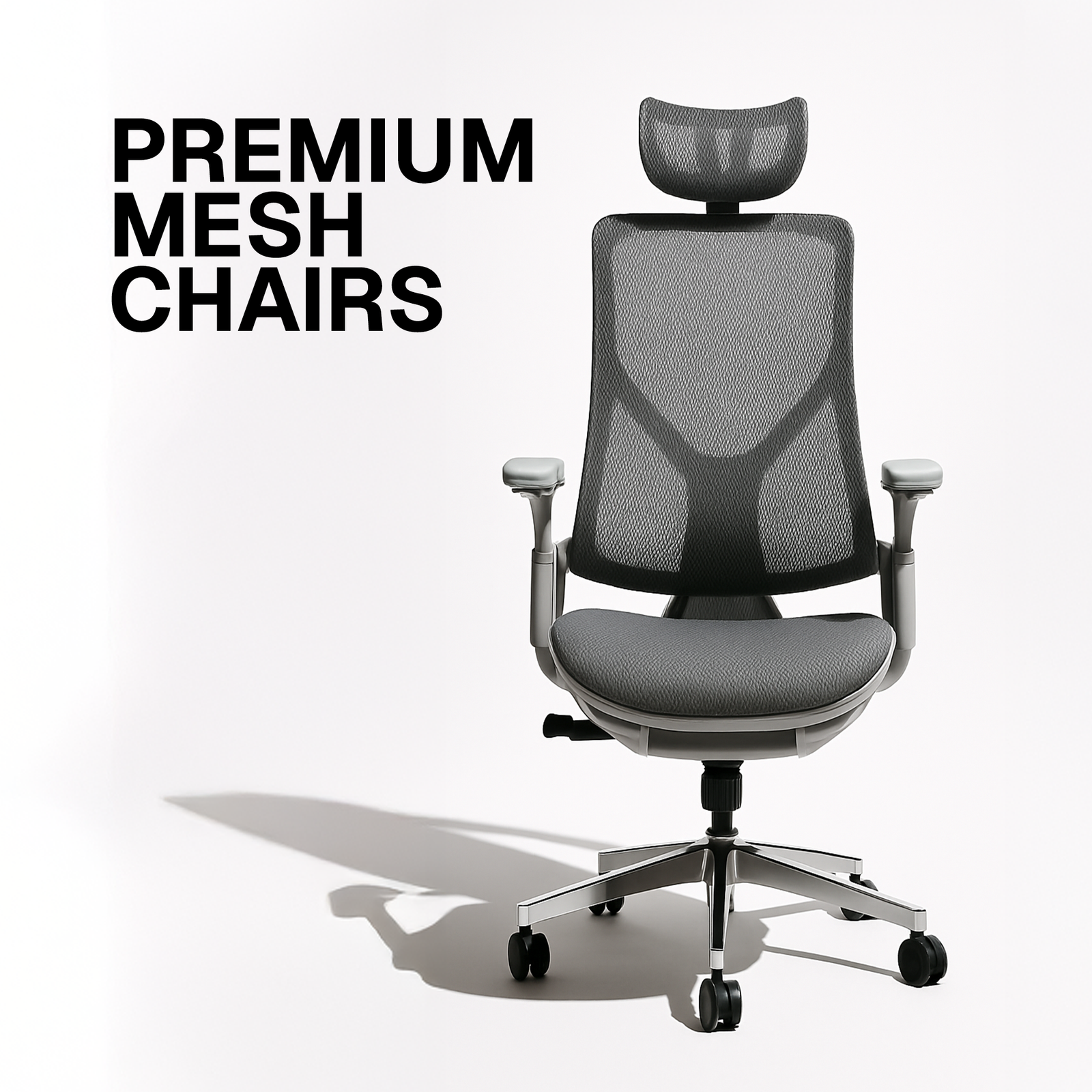
1. Invest in an Ergonomic Chair – Look for:
Adjustable seat height, depth, tilt, and recline.
Built‑in or add‑on lumbar support.
4D armrests (height, width, depth, pivot) that can be tucked out of the way.
2. Armrest Alignment – Set armrests so that elbows rest lightly (≈ 2–3 cm gap) and shoulders stay relaxed.
7. Forgetting to Take Micro‑Breaks
The Mistake
Staring at the screen for hours without moving. The “Pomodoro” technique is great, but many still forget to stretch.
Why It Hurts
Static muscle loading → fatigue, reduced blood flow, and trigger points.
Eye strain – reduced blinking, leading to dry eyes and headaches.
The Fix
1. 20‑20‑20 Rule – Every 20 minutes, look at something 20 feet away for 20 seconds to relax eye muscles.
2. Micro‑stretch routine – Every 30–45 minutes, stand, roll shoulders, stretch chest, wrist flexors/extensors, and do a quick walk.
3. Use Tech Reminders – Apps like Stretchly, Workrave, or simple timers can prompt you.
8. The “Laptop‑Only” Setup
The Mistake
Working solely on a laptop placed on your lap or a low table, with the keyboard and screen sharing the same surface.
Why It Hurts
Neck flexion (head down) + wrist extension (typing) = perfect storm for neck and wrist strain.
The Fix
1. Separate Monitor – Use a laptop stand to raise the screen to eye level, then attach an external keyboard and mouse.
2. Docking Station – A simple USB‑C hub can provide power, external monitors, and peripheral connectivity, turning your laptop into a desktop workstation.
9. Ignoring the “Dynamic Sitting” Principle
The Mistake
Staying in the same posture for hours—whether upright or slouched.
Why It Hurts
Our spines are built for movement, not static load. Prolonged stillness leads to muscle imbalances and disc degeneration over time.
The Fix
1. Sit‑Stand Alternation – If you have a sit‑stand desk, alternate every 30–60 minutes. Even a few minutes of standing reduces spinal compression.
2. Active Seating – Consider a balance ball chair, kneeling chair, or saddle seat for short periods to engage core muscles (but avoid using them 100% of the day).
3. Prompted Movement – Set a reminder to stand, stretch, or walk for 2–3 minutes every hour.
10. Misplaced Phone and Headset
The Mistake
Holding the phone between shoulder and ear or using a headset that pulls the neck forward.
Why It Hurts
Asymmetrical neck load → muscle strain and misalignment.
Upper trapezius over‑activation when cradling a phone.
The Fix
1. Use a headset with a boom mic (lightweight) or Bluetooth earpiece to keep hands free and neck neutral.
2. Phone Placement – Keep the handset on a desk‑mounted holder or use speakerphone for longer calls.
11. Neglecting Lighting and Glare
The Mistake
Working under harsh fluorescent lights, bright windows, or a monitor with glare.
Why It Hurts
Eye strain → headaches, fatigue, reduced concentration.
Postural changes as you lean forward to see the screen.
The Fix
1. Ambient Lighting – Use soft, diffused lighting (LED panel or desk lamp) that balances the screen’s brightness.
2. Monitor Position – Tilt the screen to avoid reflections from windows. Use an anti‑glare screen protector if needed.
3. Blue‑Light Filters – Activate “Night Shift” or use software (e.g., f.lux, Iris) to reduce blue‑light after hours.
12. Skipping the Ergonomic Assessment
The Mistake
Assuming your setup is fine because “it’s always been this way.”
Why It Hurts
Small misalignments accumulate, leading to chronic pain that could have been prevented.
The Fix
1. Self‑Audit Checklist – Use the “10‑point ergonomics checklist” (see sidebar) to evaluate your workstation weekly.
2. Professional Evaluation – Many companies offer on‑site ergonomic assessments (often free). If you work from home, consider a virtual assessment with a certified ergonomist.
3. Iterative Improvements – Treat ergonomics as a continuous improvement process—tiny tweaks every month can compound into massive comfort gains.
The 10‑Point Ergonomic Self‑Audit Checklist (Quick Reference)
Item How to Check
1 Desk Height Elbows at 90° when typing?
2 Monitor Height Top third of screen at eye level?
3 Screen Distance About an arm’s length away?
4 Keyboard & Mouse Alignment Wrists neutral, mouse adjacent?
5 Chair Adjustments Feet flat, thighs parallel, lumbar support engaged?
6 Armrests Elbows close, shoulders relaxed?
7 Foot Support Feet fully on floor or footrest?
8 Lighting No glare, adequate ambient light?
9 Break Frequency 20‑20‑20 eye rule + micro‑breaks every 30 min?
10 Phone/Headset Hands‑free, neck neutral?
Print this out, stick it near your monitor, and tick it off daily.
Bonus Section: Quick Desk‑Friendly Stretches (5‑Minute Routine)
Stretch How to Do It Reps/Time
Neck Tilt Sit tall, slowly tilt ear toward shoulder, hold. Switch sides. 3× each side, 15 s
Chest Opener Clasp hands behind back, lift arms gently, open chest. 2×, 20 s
Seated Cat‑Cow Hands on knees, arch back (cow), round spine (cat). 10 cycles
Wrist Flexor/Extensor Stretch Extend arm, palm up/down, gently pull fingers back. 3× each hand, 15 s
Hip Flexor March Sit, lift knee toward chest, hold, then switch. 5× each leg, 10 s
Standing Quad Stretch Stand, pull heel to glutes, keep knees together. 2× each side, 20 s
Doing this routine once mid‑day and once before you leave can dramatically reduce stiffness.
Putting It All Together: A Sample “Ergonomic Day”
Time Activity Ergonomic Action
08:45 Arrive at desk Adjust chair height, set lumbar roll, ensure feet flat
09:00 Start work Align monitor, set keyboard height, place mouse next to keyboard
09:20 20‑minute mark Perform 20‑20‑20 eye break
09:30 30‑minute mark Stand, stretch shoulders, roll wrists
10:00 Call with headset Switch to Bluetooth earpiece, keep neck neutral
10:30 20‑minute mark 20‑20‑20 eye break
11:00 Mid‑morning stretch 5‑minute stretch routine
12:30 Lunch break Walk outside – reset posture
13:30 Return to desk Re‑check chair height, re‑align monitor (if moved)
14:20 20‑minute mark 20‑20‑20 eye break
15:00 Afternoon slump Switch to standing for 10 min (if sit‑stand desk)
16:00 20‑minute mark 20‑20‑20 eye break
17:00 End of day Quick desk audit, note any discomfort for tomorrow
Following a structured rhythm like this not only protects your body but also boosts focus and productivity.
Frequently Asked Questions (FAQ)
Q1. I can’t afford a pricey ergonomic chair—what can I do?
Answer: Use a lumbar roll (a small towel or foam roller) placed in the curve of your lower back, and add a seat cushion that encourages a slight forward tilt. Adjust the armrests of your existing chair or remove them if they’re in the way.
Q2. My office uses a “hot‑desking” system. How can I stay ergonomic?
Answer: Keep a portable ergonomic kit: a foldable lumbar pillow, a compact footrest, and a travel‑size keyboard/mouse set. When you sit at a new desk, quickly adjust height, monitor angle, and chair settings before starting.
Q3. Is a standing desk really better for my back?
Answer: Yes, if used correctly. The key is alternation—standing for too long can cause lower‑body fatigue, while sitting all day compresses spinal discs. Aim for a 30‑minute standing interval every hour.
Q4. My eyes get dry even after using the 20‑20‑20 rule. What else can help?
Answer: Keep a hydrating eye drop at your desk, use a humidifier if the office air is dry, and consider a computer glasses prescription with an anti‑reflective coating.
Q5. I work night shifts and the lighting is dim. How do I avoid eye strain?
Answer: Use a bias lighting strip behind your monitor (soft amber or warm white) to reduce contrast. Also, keep your screen brightness matched to ambient light and use “night mode” settings.
The Bottom Line: Ergonomics Is a Lifestyle, Not a One‑Time Fix
If you’ve read this far, you already know that small, consistent adjustments outpace giant, occasional overhauls. The body is remarkably adaptable—when you give it the right support, it rewards you with less pain, more energy, and higher output.
Remember:
Measure before you buy or adjust.
Move every 20‑30 minutes.
Align your eyes, elbows, wrists, and spine.
Assess regularly with the checklist.
Your workstation is an extension of your body. Treat it with the same care you’d give a trusted tool—fine‑tune it, maintain it, and it will keep you performing at your best for years to come.
Take Action Today
1. Print the 10‑point checklist and place it on your monitor.
2. Set a timer for the next three days to remind yourself to stand, stretch, and do the 20‑20‑20 eye rule.
3. Identify one piece of equipment (desk, chair, monitor riser) that you can adjust or upgrade within the next week.
You’ll be amazed how quickly those aches start to fade.
Sit straight, type smart, and let your workspace work for you— not against you.
Feel free to share your own ergonomic wins or questions in the comments below. Together we’ll build healthier, happier offices—one posture at a time.
References & Further Reading
American Physical Therapy Association. (2023). “Work‑Related Musculoskeletal Disorders: Prevention and Management.”
Harvard Health Publishing. (2022). “The Science of Sitting: Why It’s Bad and How to Fix It.”
Occupational Safety and Health Administration (OSHA). “Ergonomics – Office Workstations.”
Disclaimer: This blog post provides general information and is not a substitute for professional medical advice. If you experience persistent pain, consult a healthcare professional.